


Forminator Guide: How to Build a WordPress Contact Form Step by Step

A website without a contact form is a shop with no door. In this tutorial you will build a working WordPress contact form with the free Forminator plugin, send the messages to your inbox, protect it from spam, embed it on a page, test it and fix the usual problems. It is the same method we used for the contact page and the Maps Lab lead form on this site, with real screenshots from our own setup.
| You will build | A contact form that emails you and stores every message |
| You need | A WordPress site with admin access and a working admin email |
| Level | Beginner, no coding |
| Time | About 45 minutes |
| Reading time | 10 min read |
Plan the form first
Before you click anything, decide what the form is for. A good form asks only what you need to reply. Every extra field makes some visitors give up. Use the planner below: pick a purpose and it ticks the fields we recommend, then shows a preview of the form and how long it is.
Step 1: install Forminator
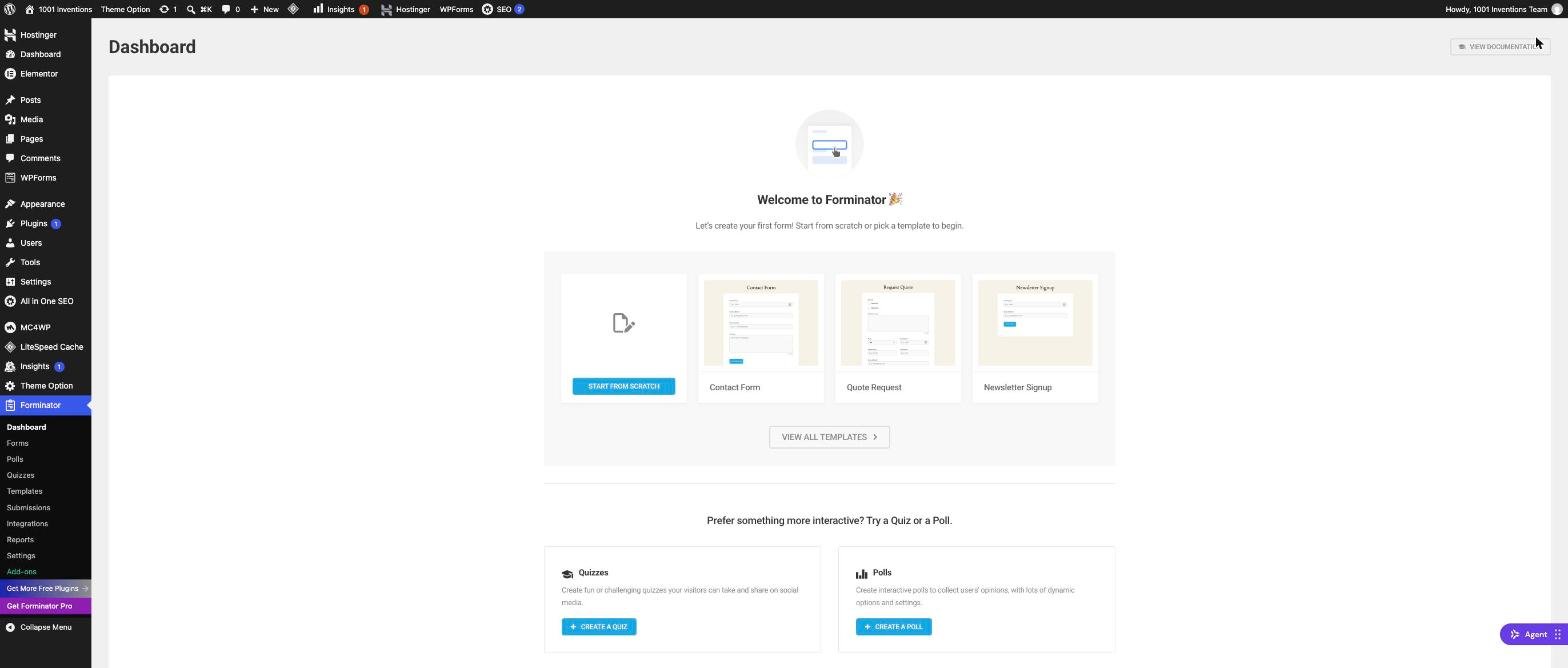
In your WordPress dashboard go to Plugins, then Add New, search for Forminator, install it and activate it. Forminator is a free plugin from WPMU DEV that builds forms, polls and quizzes. After activation, a Forminator menu appears on the left, and the dashboard offers ready-made templates.
Step 2: build the form
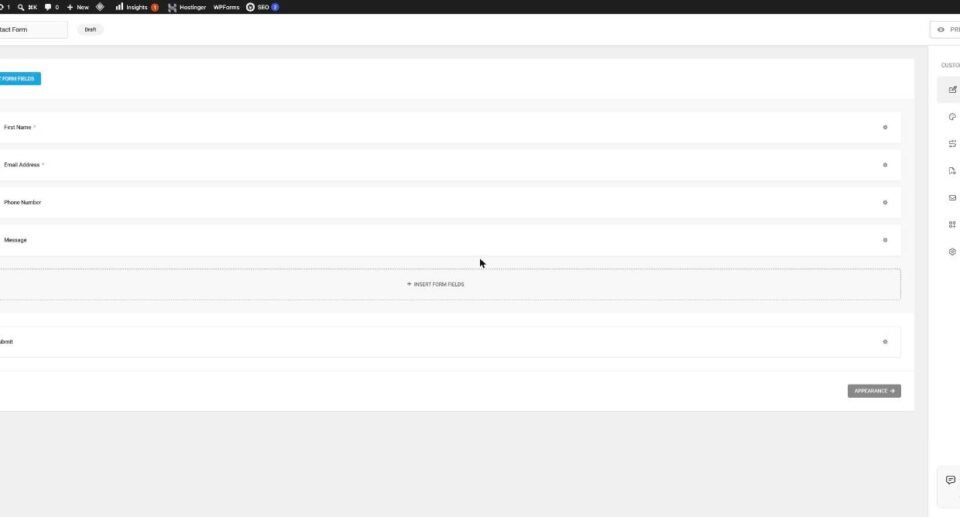
Click Forms, then Add New, and choose a template or a blank form. For a contact form the contact template already has name, email, phone and message. Click the cog icon on any field to change its label, make it required or add a description. Drag fields to reorder them. The menu on the right holds appearance, behaviour, email notifications and other settings.
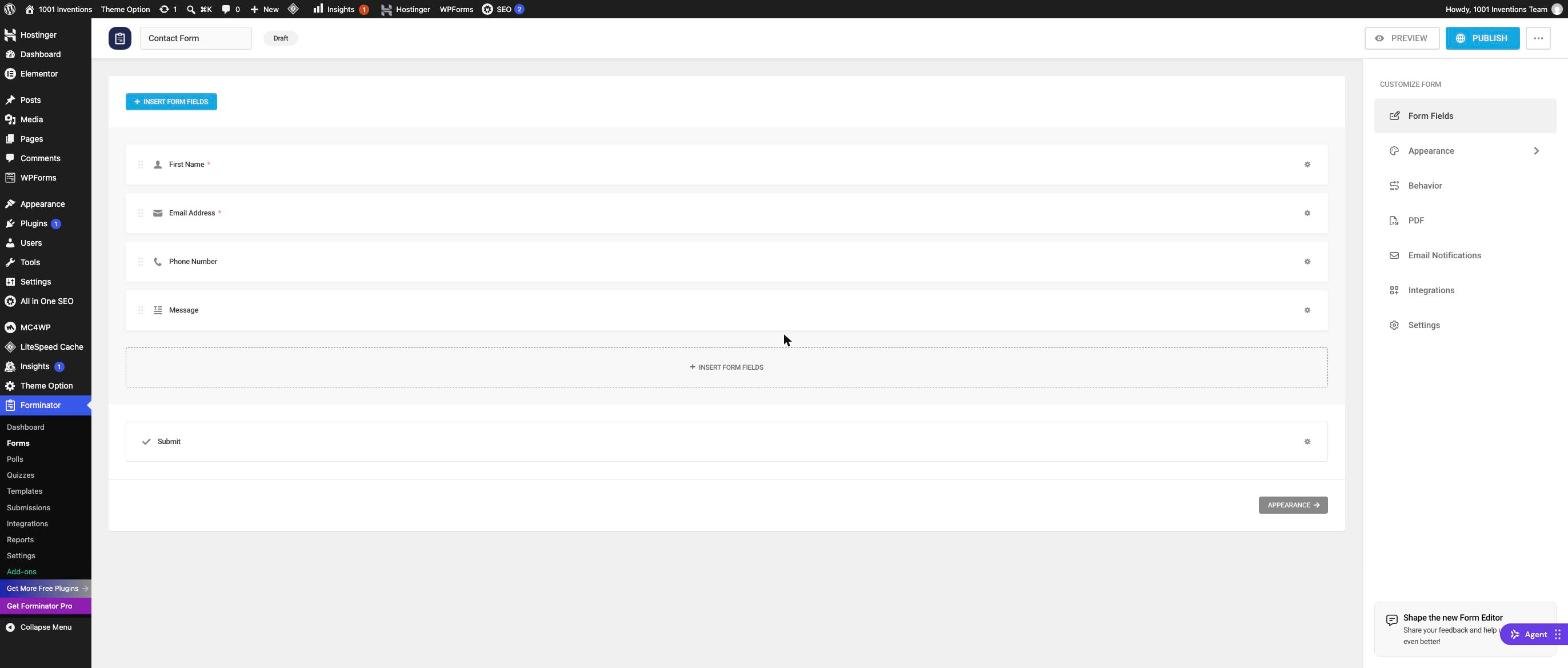
Your form should have, at minimum, an Email field marked required and a Message field. Name the form something clear, such as Contact Form, in the box at the top left. You will need that name later when you read submissions.
Step 3: choose what happens after sending
Open Behavior. Here you decide what visitors see after they submit. The simplest choice is an inline thank-you message: Thanks, we will reply within two working days. Keep submission set to Ajax so the page does not reload. You can also redirect to a thank-you page, which is useful for tracking conversions later.

Step 4: get the messages by email
Open Email Notifications. By default Forminator emails the site admin on every submission. You can edit the recipient, the subject and the message. Insert the visitor’s answers with the Insert Field button, which adds tags that look like name-1 in curly brackets. You can add a second notification that sends an automatic confirmation to the visitor.

WordPress sends mail through the web server, and many mail providers treat that as suspicious and send it to spam or block it. If your test email does not arrive, install an SMTP plugin that sends through a real mailbox, and check the spam folder first. Forminator also keeps every submission under Forminator, Submissions, so you never lose a message even if the email fails.
Step 5: stop spam
- Honeypot. A hidden field that humans never see but bots fill in. Turn on honeypot protection in the form behaviour settings. It costs your visitors nothing.
- CAPTCHA. Forminator supports Google reCAPTCHA and hCaptcha, and recent versions also offer Cloudflare Turnstile. Add the keys in Forminator Settings, then add the CAPTCHA field to the form. Check your version’s settings screen for what is available.
- Limits. Make fields required, limit message length and keep the number of fields small.
Start with the honeypot. Add a CAPTCHA only if spam continues, since each one adds a small hurdle for real people.
Step 6: publish it on a page
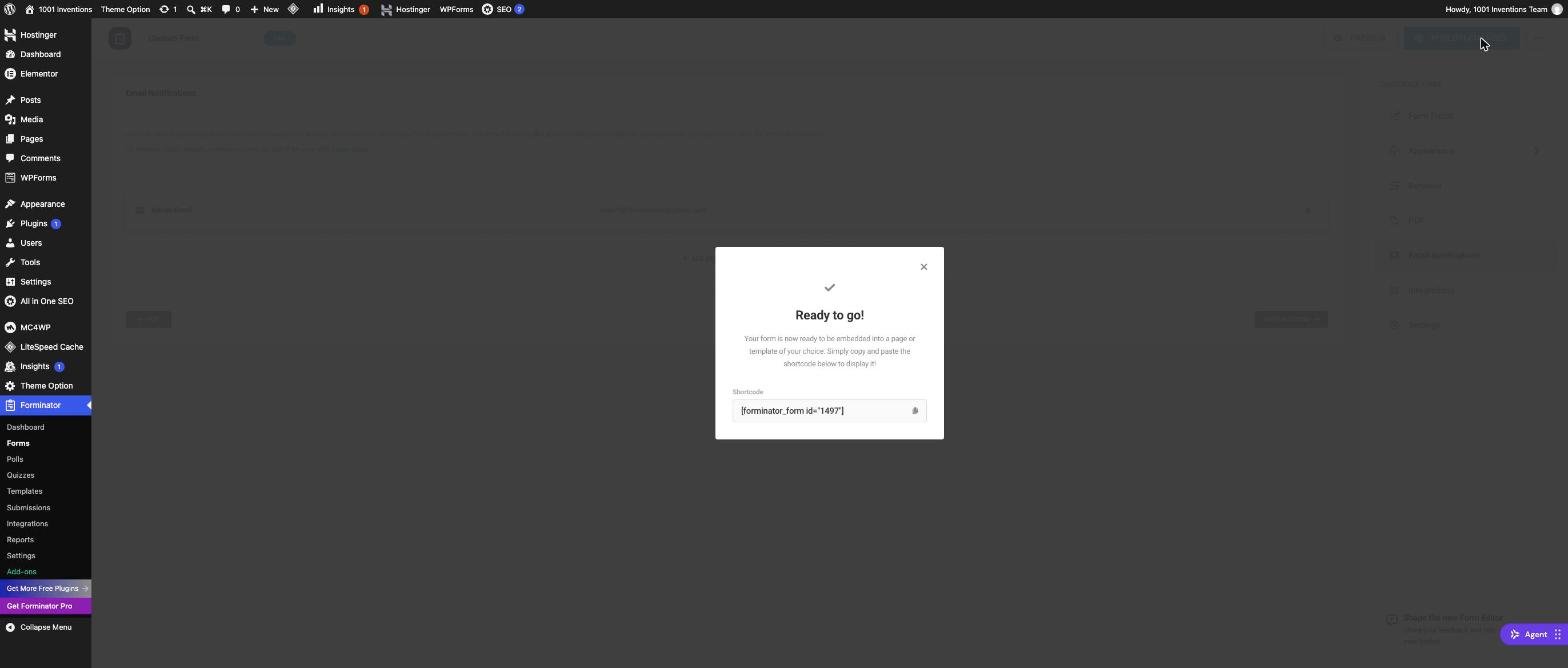
Click Publish. Forminator shows a dialog with a shortcode, a short piece of text in square brackets that WordPress replaces with your form. Copy it and paste it into a page using a Shortcode block, or use the Forminator block in the block editor. The tool below builds the shortcode for you once you type your form’s ID number. You can see the ID in the Forminator forms list.
Step 7: test like a visitor
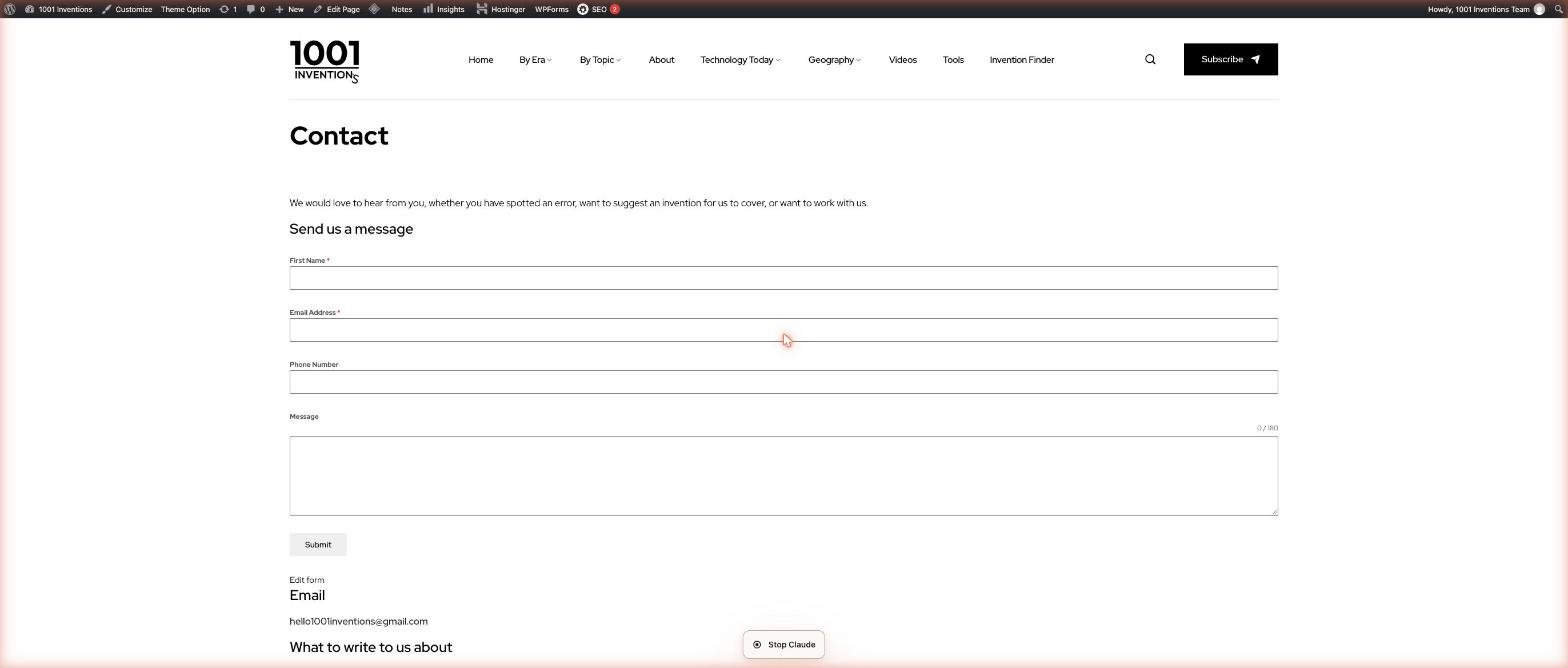
- Open the page in a private browser window, so you see what visitors see.
- Submit the form with a real email address of your own.
- Check the thank-you message, then your inbox and spam folder.
- Open Forminator, Submissions, and confirm the entry is saved.
- Try the form on your phone. Check that every field is easy to tap.
- Submit it empty and with a wrong email, to confirm the error messages are clear.
A pro trick: one form per source
If you run several pages that collect enquiries, make a separate form for each. In Forminator, open the forms list, use the Duplicate action on your contact form, rename the copy and put it on the new page. Now you can see at a glance where each lead came from, and send different notification emails. We use this on the Maps Lab page, which has its own lead form.
Final checklist
Troubleshooting
The form does not show on the page
Check the shortcode ID matches the form, that the form is published, and that a caching plugin has been cleared. Try the Forminator block instead of the shortcode.
I get submissions but no emails
Check spam, confirm the recipient address is correct and set up an SMTP plugin. Your entries are still saved under Submissions.
I get lots of spam
Turn on the honeypot, then add a CAPTCHA, and make sure the message field is required.
The form looks different from my site
Open the Appearance settings and choose a style that matches your theme, or use custom CSS.
Privacy and the law
A contact form collects personal data, so tell people what you do with it. Add a link to your privacy policy near the form, keep only the data you need and delete old messages when you no longer need them. If you use the data for marketing email, ask for clear consent with a checkbox. This is general guidance, not legal advice.
Mind map: a form that works
- Contact form
- Plan
- Purpose
- Few fields
- Clear labels
- Build
- Forminator
- Fields
- Behaviour
- Deliver
- Email notification
- Submissions list
- SMTP
- Protect
- Honeypot
- CAPTCHA
- Privacy policy
- Publish
- Shortcode
- Test
- One form per source
- Plan
Test yourself
Where to go next
See a Forminator lead form in action.HTML, CSS and JavaScript
Style and extend your pages.What Is Version Control?
Keep your site files safe.Mobile apps history
Where your visitors will fill the form.
Sources
- Forminator plugin page, WordPress.org, official plugin listing and documentation links
- Forminator documentation, WPMU DEV, official documentation
Screenshots are from our own site. Plugin screens can change between versions, so use the official documentation for the latest details.